> ## Documentation Index
> Fetch the complete documentation index at: https://docs.distoai.com/llms.txt
> Use this file to discover all available pages before exploring further.
# Help
> Help with common issues.
## How can I find my Sentry DSN?
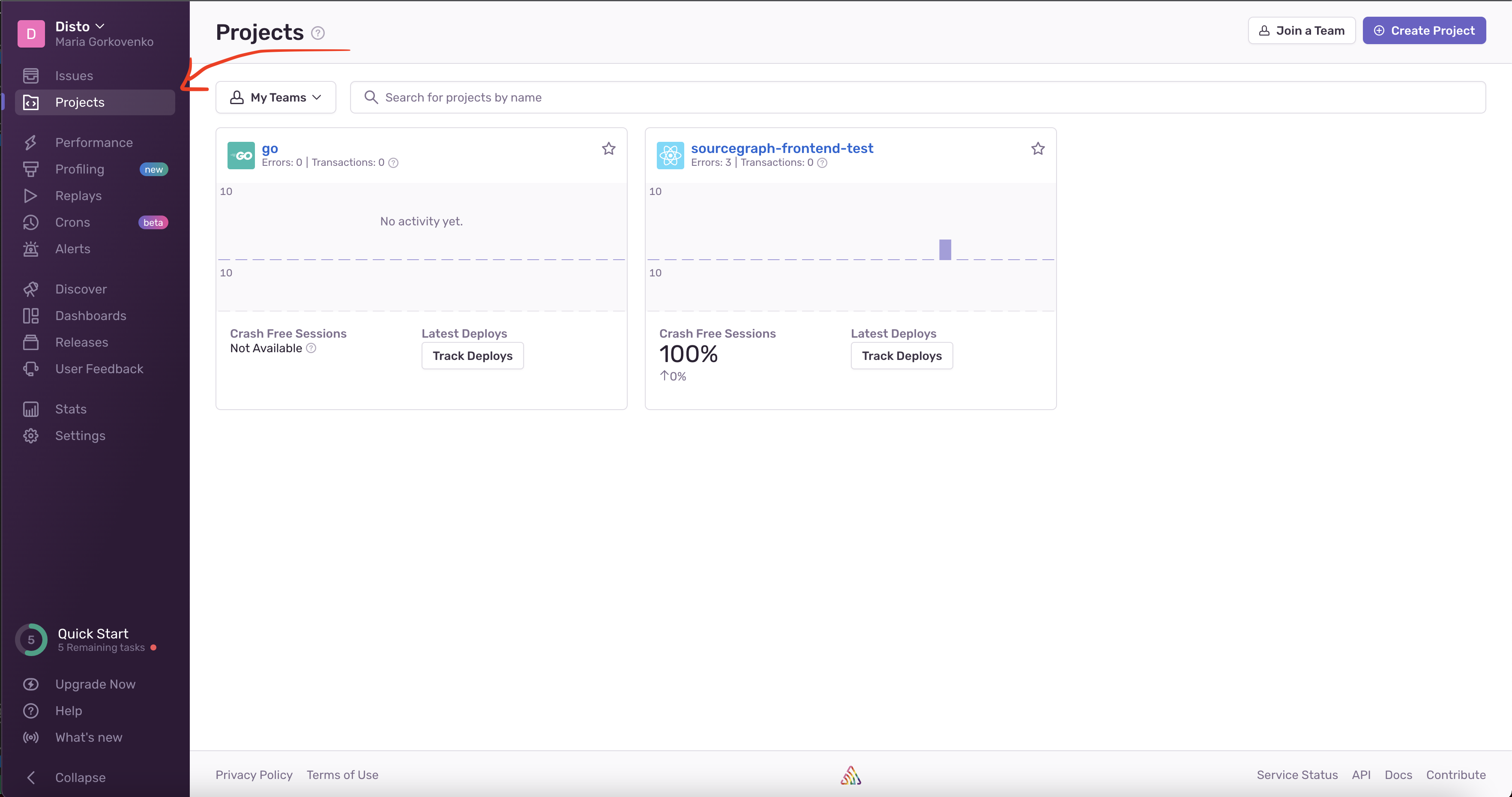
1. In Sentry, go to "Projects" and click on the project that you want to find the DSN for.
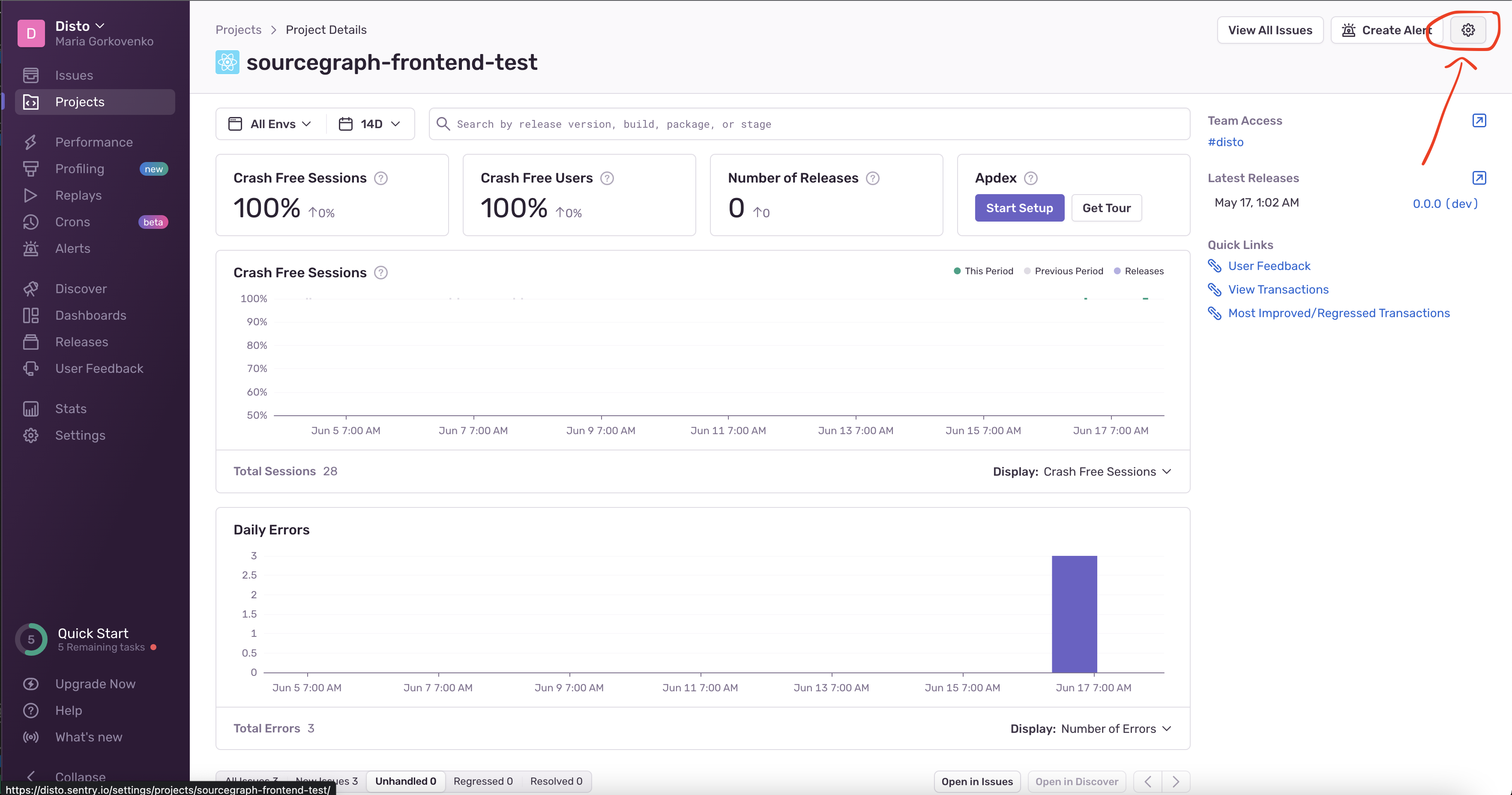
 2. Click the "Settings" button in the top right.
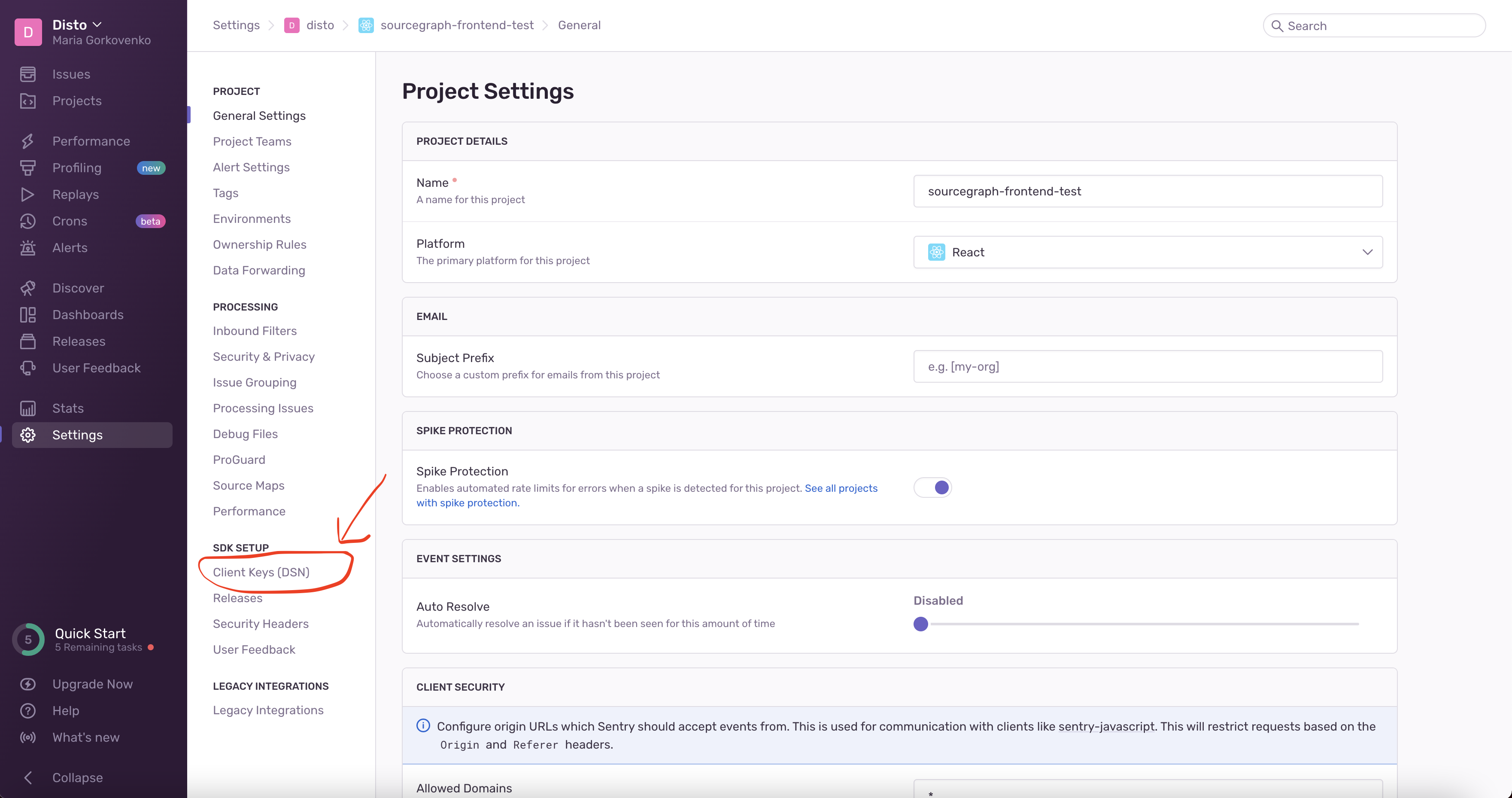
 3. Click on "Client Keys \[DSN]"
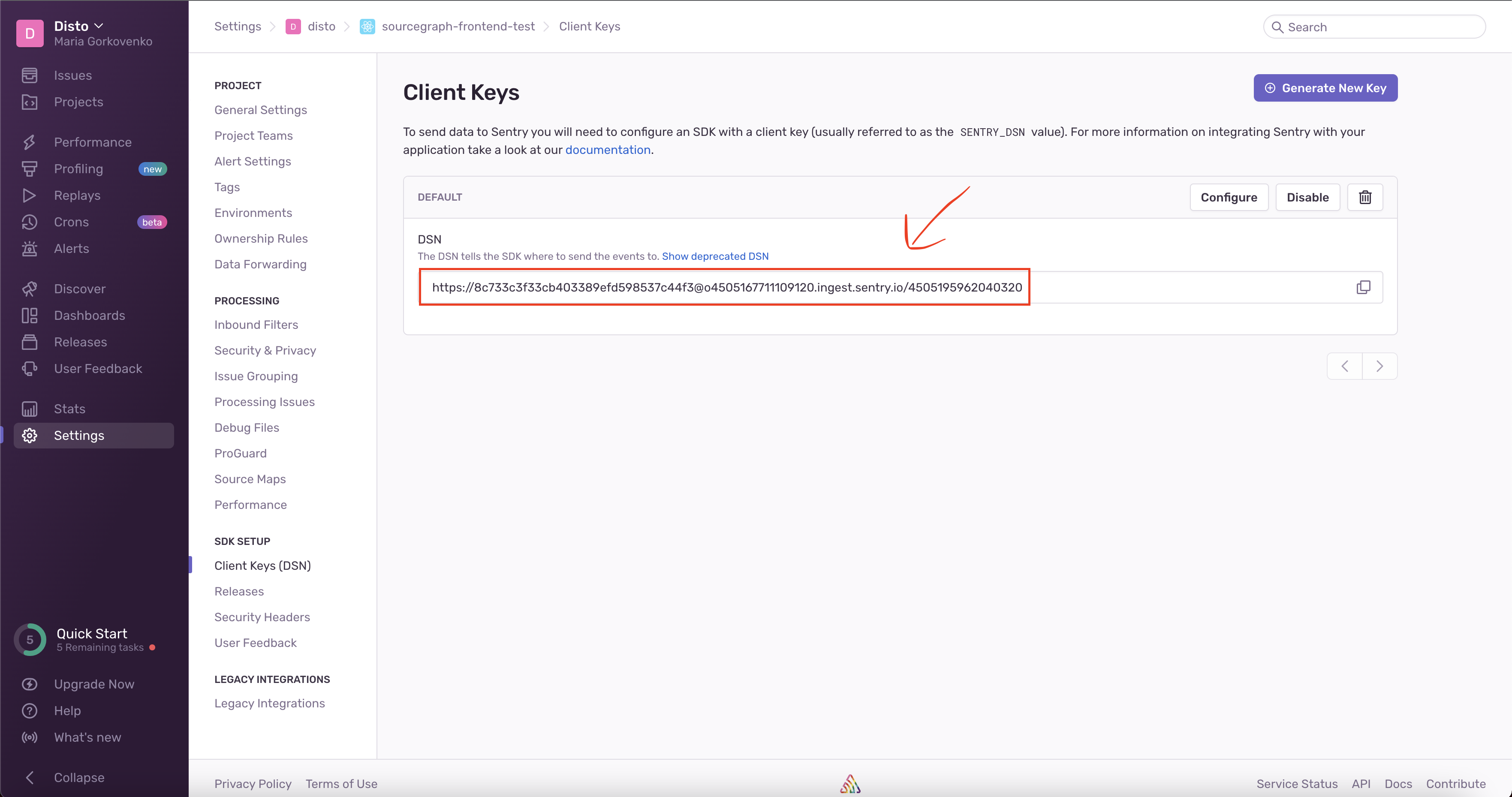
 4. Copy your DSN from the box.
 ## Troubleshooting
Here's how to solve some common problems when setting up Disto.
If you don’t see the repo that you want to add, make sure Disto has access
to it. Go to [https://github.com/settings/installations](https://github.com/settings/installations) , click on “DistoAI”,
then click “All Repositories”, or select specific ones. You can then go back
to the “create project” page in Disto, refresh the page, and see the repos
you just selected show up in the dropdowns.
## Troubleshooting
Here's how to solve some common problems when setting up Disto.
If you don’t see the repo that you want to add, make sure Disto has access
to it. Go to [https://github.com/settings/installations](https://github.com/settings/installations) , click on “DistoAI”,
then click “All Repositories”, or select specific ones. You can then go back
to the “create project” page in Disto, refresh the page, and see the repos
you just selected show up in the dropdowns.